[Imported] Sending an alert in Microsoft Teams from Azure DevOps Pipelines
This post was originally published on Dev.to.
Sometimes there is the need to warn your team about an on going deployment to the cloud. And if you are using Microsoft Teams as primary communication platform, you are likely to have a private channel with your team. This is my case, where anyone is going to run a release pipeline warns the rest of the team about it. Since manually sending messages is annoying, we automated this operation by using Teams webhooks - without the help of Graph APIs 🐱👤.
Setup a channel webhook
In order to start, you need to set up a webhook for the channel of where you would like to send messages. So select your channel and then click the 3 dots in the upper right corner; open the Connectors menu and search for Incoming Webhook. Once found, click on Configure:
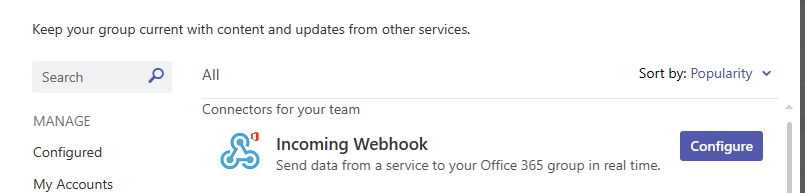
Here, set the name, optionally upload an image (it will be the avatar next to the channel posts) and finally click on Create.
An URL should be generated: copy and note it, you will need it later on.
Setup the pipeline
Select your pipeline and a task to run a bash script. Here write down the following code:
 1set -x
 2umask 0002
 3
 4cat > ./post.json <<endmsg
 5      {
 6        "summary": "$System.DefinitionName is being deployed in $Release.EnvironmentName",
 7        "text": "[$System.DefinitionName]($Release.ReleaseWebUrl) ($BRANCH_NAME) is being deployed in $Build.SourceBranchName by $Release.RequestedFor"
 8      }
 9endmsg
10
11curl -X POST -H "Content-Type: application/json" -d @post.json <url-you-copied-from-teams> -v
This script is simply creating a json file called post.json with some content supported by Teams. Then, a POST request is sent to the endpoint of the webhook we previously configured. You should now see the message on Teams:
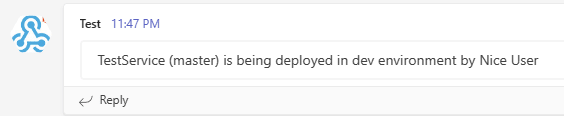
In the example above, the variables System.DefinitionName, Release.EnvironmentName, Release.ReleaseWebUrl, Build.SourceBranchName and Release.RequestedFor are automatically provided by Azure DevOps in a release pipeline and they stand for:
- the pipeline name
- the pipeline stage name
- a permanent link to the current pipeline run
- the artifact branch name
- the user who triggered the pipeline
Conclusions
As shown, sending a message to a Teams channel is really easy and you don’t need to integrate Graph APIs unless you care about some advanced features. However, implementing Graph APIs in a pipeline is not a 5 minute job like this one, so find your tradeoff between utility and effort.
This tutorial sends a simple message as an example, but messages are customizable and also interactive as described in Microsoft documentation.
Even if this procedure is quite straightforward, for me it took few hours since at the time, it wasn’t documented at all.
For this reason, I hope this has been helpful.
Happy coding and happy releases! 🐱👤
#Imported-Devto #Cloud #Tooling #Tutorial #Devops