[Imported] .NET 6.0 console app - Configuration, tricks and tips
This post was originally published on Dev.to.
One of the biggest .NET benefit is the flexibility and the portability of its features.
As ASP.NET Core relies on the IHostBuilder, we can do the same with a classic console application.
This approach will help us to have a basic infrastructure in our application, including the support for logging, dependency injection, app settings and so on.
To start with this, add the Microsoft.Extensions.Hosting NuGet package to your project and replace the “Hello World template” with this code:
 1class Program
 2{
 3    static async Task<int> Main(string[] args)
 4    {
 5        var host = CreateHostBuilder();
 6        await host.RunConsoleAsync();
 7        return Environment.ExitCode;
 8    }
 9
10    private static IHostBuilder CreateHostBuilder()
11    {
12        return Host.CreateDefaultBuilder();
13    }
14}
Doing this, we are asking for an HostBuilder instance with the default infrastructure implementation.
The RunConsoleAsync starts the host builder with the “classic console” capabilities, such as the listener for the CTRL+C shortcut. Finally, it returns the application exit code (default is 0).
This is a starting point; now we can extend our capabilities.
IHostedService
The Main method is the application entry point, but we now need to continue the execution of our app. To achieve this, add a class that implement the IHostedService interface and register it to the IoC container using the extension method AddHostedService:
 1private static IHostBuilder CreateHostBuilder()
 2{
 3    return Host.CreateDefaultBuilder()
 4        .ConfigureServices(services =>
 5        {
 6            services.AddHostedService<Worker>();
 7        });
 8}
 9
10public class Worker : IHostedService
11{
12    public Task StartAsync(CancellationToken cancellationToken)
13    {
14        throw new NotImplementedException();
15    }
16
17    public Task StopAsync(CancellationToken cancellationToken)
18    {
19        throw new NotImplementedException();
20    }
21}
Now at the startup, the application runs the StartAsync method;
Instead StopAsync is executed when the is going to be terminated.
Use the Dependency Injection
We can now use the dependency injection system provided by .NET.
In the ConfigureServices method, add the services you need to run your application:
 1public class MyService : IMyService
 2{
 3    public async Task PerformLongTaskAsync()
 4    {
 5        await Task.Delay(5000);
 6    }
 7}
 8
 9public interface IMyService
10{
11    Task PerformLongTaskAsync();
12}
13
14public class Worker : IHostedService
15{
16    private readonly IMyService _myService;
17
18    public Worker(IMyService service)
19    {
20        _myService = service ?? throw new ArgumentNullException(nameof(service));
21    }
22
23    public async Task StartAsync(CancellationToken cancellationToken)
24    {
25        await _myService.PerformLongTaskAsync();
26    }
27}
28
29private static IHostBuilder CreateHostBuilder()
30{
31    return Host.CreateDefaultBuilder()
32        .ConfigureServices(services =>
33        {
34            services.AddHostedService<Worker>();
35
36            services.AddTransient<IMyService, MyService>();
37        });
38}
Logging and configuration
Using the HostBuilder’s ConfigureLogging extension method we have a full access to the logging configuration. In this case, we want to replace the default .NET implementation with one of the most used logging library, Serilog.
First of all, install Serilog NuGet packages:
Serilog.Extensions.HostingSerilog.Settings.ConfigurationIn this example, we are going to use the Console and the File sinks:Serilog.Sinks.ConsoleSerilog.Sinks.File
Our goal is to log events in a log file when running in a Production environment; we stick instead to the console when debugging the app.
To start with this, edit the CreateHostBuilder method as follow:
 1return Host.CreateDefaultBuilder()
 2    .ConfigureLogging(logging =>
 3    {
 4        logging.ClearProviders();
 5    })
 6    .UseSerilog((hostContext, loggerConfiguration) =>
 7    {
 8        loggerConfiguration.ReadFrom.Configuration(hostContext.Configuration);
 9    })
10    .ConfigureServices(services =>
11    {
12        services.AddHostedService<Worker>();
13
14        services.AddTransient<IMyService, MyService>();
15    });
The logging.ClearProviders() is used to clear all the default HostBuilder logging providers. These are:
- Console
- Debug
- Event Source
- EventLog (Windows only)
Then we read from the appsettings.json (added in the next paragraph) the Serilog configuration using loggerConfiguration.ReadFrom.Configuration(hostContext.Configuration);.
Now it’s time to give a configuration to our app. Add the appsettings.json file to your project (ensure to set the BuildAction to Content and the Copy to Output Directory to Copy if newer). Then, paste the Serilog’s configuration:
 1"Serilog": {
 2    "MinimumLevel": {
 3      "Default": "Information",
 4      "Override": {
 5        "Microsoft": "Warning",
 6        "System": "Warning"
 7      }
 8    },
 9    "WriteTo": [
10      {
11        "Name": "File",
12        "Args": {
13          "path": "log.txt",
14          "rollingInterval": "Day",
15          "outputTemplate": "{Timestamp:yyyy-MM-dd HH:mm:ss.fff zzz} [{Level:u3}] {Message:lj}{NewLine}{Exception}",
16          "shared": true
17        }
18      }
19    ],
20    "Enrich": [ "FromLogContext" ]
21  }
The snippet above is setting the Serilog default level to Information (with some override for the Microsoft and System namespaces) and configure the File sink. In particular, it rolls out a different log file each day.
But as stated above, we want to redirect all the application output to the console when debugging the app. Then we need to setup the appsetting.Development.json file to the project and override the Serilog configuration, changing the default minimum level and setting the console as output provider:
 1"Serilog": {
 2    "MinimumLevel": {
 3      "Default": "Debug",
 4      "Override": {
 5        "Microsoft": "Information",
 6        "System": "Information"
 7      }
 8    },
 9    "WriteTo": [
10      {
11        "Name": "Console",
12        "Args": {
13          "theme": "Serilog.Sinks.SystemConsole.Themes.AnsiConsoleTheme::Code, Serilog.Sinks.Console",
14          "outputTemplate": "[{Timestamp:HH:mm:ss} {Level:u3}] {Message:lj} <s:{SourceContext}>{NewLine}{Exception}"
15        }
16      }
17    ],
18    "Enrich": [ "FromLogContext" ]
19  }
We don’t need to do anything else to support different environemnts than defining them in the launchSettings file. Add a folder called Properties and a file named launchSettings.json:
 1{
 2    "profiles": {
 3        "Development": {
 4            "commandName": "Project",
 5            "environmentVariables": {
 6                "DOTNET_ENVIRONMENT": "Development"
 7            }
 8        },
 9        "Production": {
10            "commandName": "Project",
11            "environmentVariables": {
12                "DOTNET_ENVIRONMENT": "Production"
13            }
14        }
15    }
16}
The DOTNET_ENVIRONMENT variable is automatically read from the HostBuilder. It is possible to customize them, more info are available in the official doc.\
We are now ready to use the logger and eventually the values coming from the app settings files. Inject the ILogger and the IConfiguration instances in your classes:
 1public class Worker : IHostedService
 2{
 3    private readonly IMyService _myService;
 4    private readonly string _configKey;
 5    private readonly ILogger<Worker> _logger;
 6
 7    public Worker(IMyService service, IConfiguration configuration, ILogger<Worker> logger)
 8    {
 9        _myService = service ?? throw new ArgumentNullException(nameof(service));
10        _logger = logger ?? throw new ArgumentNullException(nameof(logger));
11        _configKey = configuration["ConfigKey"];
12    }
13
14    public async Task StartAsync(CancellationToken cancellationToken)
15    {
16        _logger.LogInformation("Read {key} from settings", _configKey);
17
18        await _myService.PerformLongTaskAsync();
19    }
20
21...
22}
NOTE: In order to make this code working, you need to add a ConfigKey property in your app settings. If you do the same in the appsettings.Development.json but with a differenva lue, you could notice that value changes depending on the current environment
We could also add the user secrets and environment variables support using:
 1.ConfigureLogging(logging =>
 2{
 3    ...
 4})
 5.UseSerilog((hostContext, loggerConfiguration) =>
 6{
 7    ...
 8})
 9.ConfigureAppConfiguration((hostContext, builder) =>
10{
11    builder.AddEnvironmentVariables();
12
13    if (hostContext.HostingEnvironment.IsDevelopment())
14    {
15        builder.AddUserSecrets<Program>();
16    }
17})
Terminates the app properly using Exit Code
Injecting the IHostApplicationLifetime instance in the Worker class, we can terminate properly the console process when the job is done. Calling StopApplication is enough and it will redirect the running path to the StopAsync method. Moreover, we can use Exit Code to tell the user why the app stopped:
 1private readonly IHostApplicationLifetime _hostLifetime;
 2private int? _exitCode;
 3...
 4
 5public Worker(IMyService service, IConfiguration configuration, IHostApplicationLifetime hostLifetime, ILogger<Worker> logger)
 6{
 7    ...
 8    _hostLifetime = hostLifetime ?? throw new ArgumentNullException(nameof(hostLifetime));
 9}
10
11public async Task StartAsync(CancellationToken cancellationToken)
12{
13    _logger.LogInformation("Read {key} from settings", _configKey);
14
15    try
16    {
17        await _myService.PerformLongTaskAsync();
18
19        _exitCode = 0;
20    }
21    catch (OperationCanceledException)
22    {
23        _logger?.LogInformation("The job has been killed with CTRL+C");
24        _exitCode = -1;
25    }
26    catch (Exception ex)
27    {
28        _logger?.LogError(ex, "An error occurred");
29        _exitCode = 1;
30    }
31    finally
32    {
33        _hostLifetime.StopApplication();
34    }
35}
36
37public Task StopAsync(CancellationToken cancellationToken)
38{
39    Environment.ExitCode = _exitCode.GetValueOrDefault(-1);
40    _logger?.LogInformation("Shutting down the service with code {exitCode}", Environment.ExitCode);
41    return Task.CompletedTask;
42}
Use command line arguments efficiently
One of the better way to handle the command line arguments in your app, is through the McMaster.Extensions.CommandLineUtils NuGet package.
It is a fork of the deprecated Microsoft library and allow you to easily manage the input commands. I show you a brief example of use. You need to modify the Program.cs as follow:
 1[Command(
 2    Name = "MyApp"
 3    , Description = "My app is very cool 😎")]
 4[HelpOption(
 5    "-h"
 6    , LongName = "help"
 7    , Description = "Get info")]
 8[VersionOptionFromMember(
 9    "-v"
10    , MemberName = nameof(GetVersion))]
11class Program
12{
13    [Option(
14        "-o"
15        , "Some option"
16        , CommandOptionType.SingleValue
17        , LongName = "option")]
18    [Range(1, 5)]
19    public int Option { get; } = 1;
20
21    public static Task<int> Main(string[] args) =>
22        CommandLineApplication.ExecuteAsync<Program>(args);
23
24    public async Task<int> OnExecuteAsync(CancellationToken cancellationToken)
25    {
26        var host = CreateHostBuilder();
27        await host.RunConsoleAsync(cancellationToken);
28        return Environment.ExitCode;
29    }
30
31private static IHostBuilder CreateHostBuilder() {...}
32
33private static string GetVersion()
34    => typeof(Program).Assembly.GetCustomAttribute<AssemblyInformationalVersionAttribute>()?.InformationalVersion;
Here’s a description:
Command: gives a name and a description to you appHelpOption: enables the-h(or--help) optionVersionOption: returns the app version numberOption: represents the value passed as input argument to your app
Then, the Main method needs some refactoring. Instead, the OnExecuteAsync is called automatically by the framework (it becomes the old Main method basically). Not that OnExecuteAsync is not static, so it can access to the class properties such has Option - that you can register in the IoC container using the IOptions pattern:
 1public class MyOptions
 2{
 3    public int Value { get; set; }
 4}
 5
 6class Program
 7{
 8
 9    [Option(
10        "-o"
11        , "Some option"
12        , CommandOptionType.SingleValue
13        , LongName = "option")]
14    [Range(1, 5)]
15    public int Option { get; } = 1;
16
17...
18
19.ConfigureServices(services =>
20    {
21        services.AddHostedService<Worker>();
22
23        services.Configure<MyOptions>(options =>
24        {
25            options.Value = Option;
26        });
27
28        services.AddTransient<IMyService, MyService>();
29    });
30
31...
32
33public class Worker : IHostedService
34
35    private readonly MyOptions _options;
36
37    public Worker(IMyService service, IConfiguration configuration, IHostApplicationLifetime hostLifetime, ILogger<Worker> logger, IOptions<MyOptions> options)
38    {
39        ...
40        _options = options?.Value ?? throw new ArgumentNullException(nameof(options));
41        ...
42    }
Here the CommandLineUtils in action:
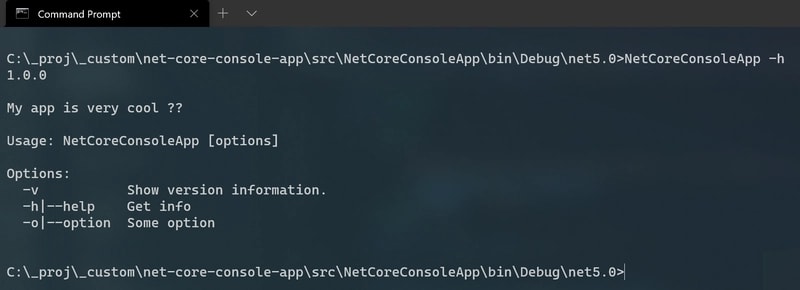
Unfortunately my console doesn’t support emoji yet 😒
Conclusions
I hope this tutorial gave you the right hint to start your next project based on a .NET console application! These are just an introduction of all the features you can add, basically with no limits! Yeah, it is true: you can use everything you are already using in your ASP.NET Core projects through the IHostBuilder interface. Sounds good, isn’t it? 🐱👤
As usual the source code is available in my GitHub profile.
#Imported-Devto #Dotnet #Dev #Console-App